User guide
GridCapa allows to run and monitor tasks for the different processes that have been deployed on the platform.
Presentation of GridCapa HMI
The GridCapa Human-Machine Interface (HMI) provides a user-friendly way to interact with the GridCapa platform. It allows users to run and monitor tasks, view logs, manage files, and configure process parameters.
Process selection
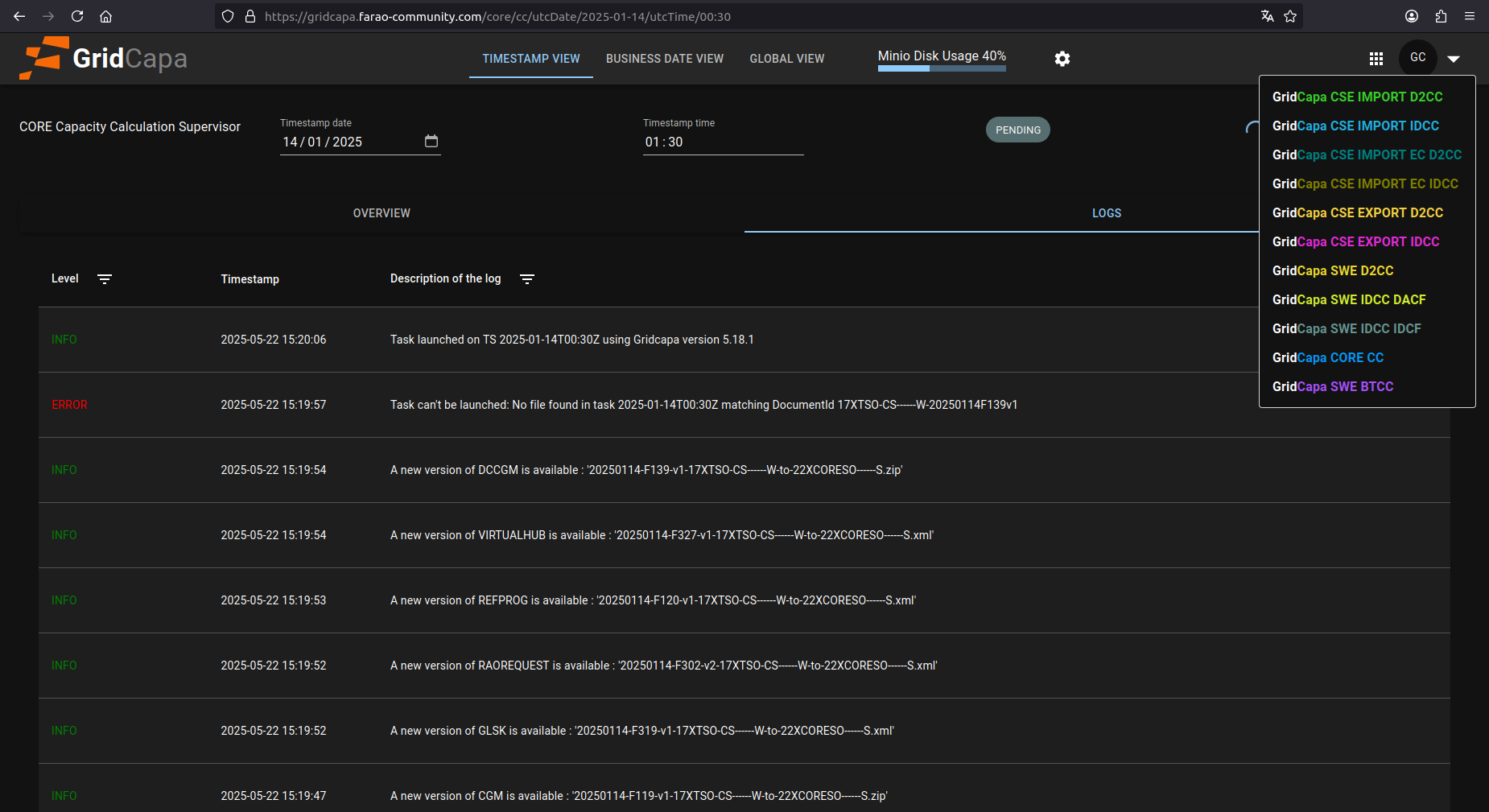
The list of all deployed processes is available through GridCapa UI. In practice each process has its dedicated web application with an associated URL. The link to all deployed process is accessible directly through GridCapa HMI, by clicking on button  :
:
Display settings
Change display mode (Light/Dark mode)
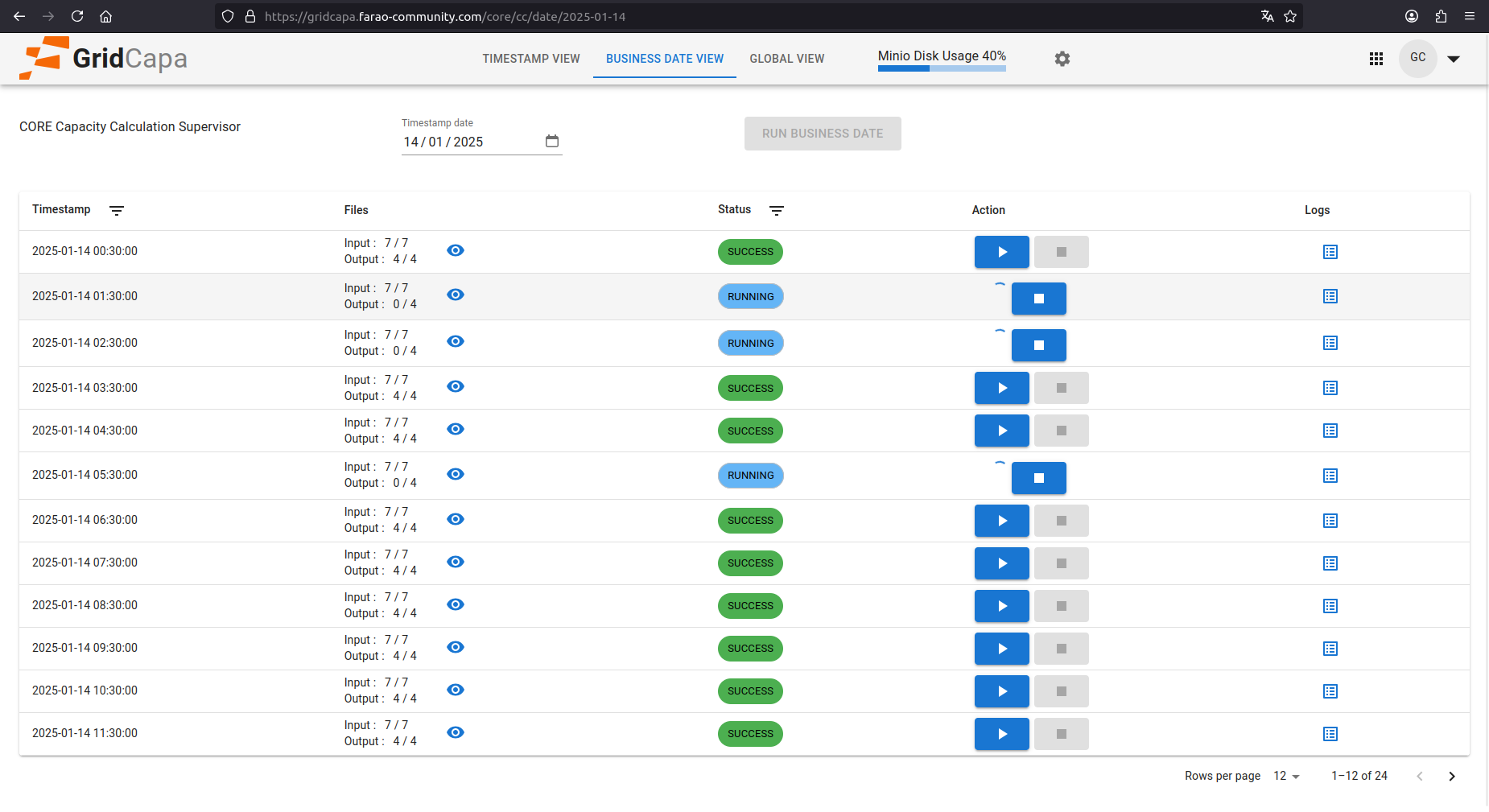
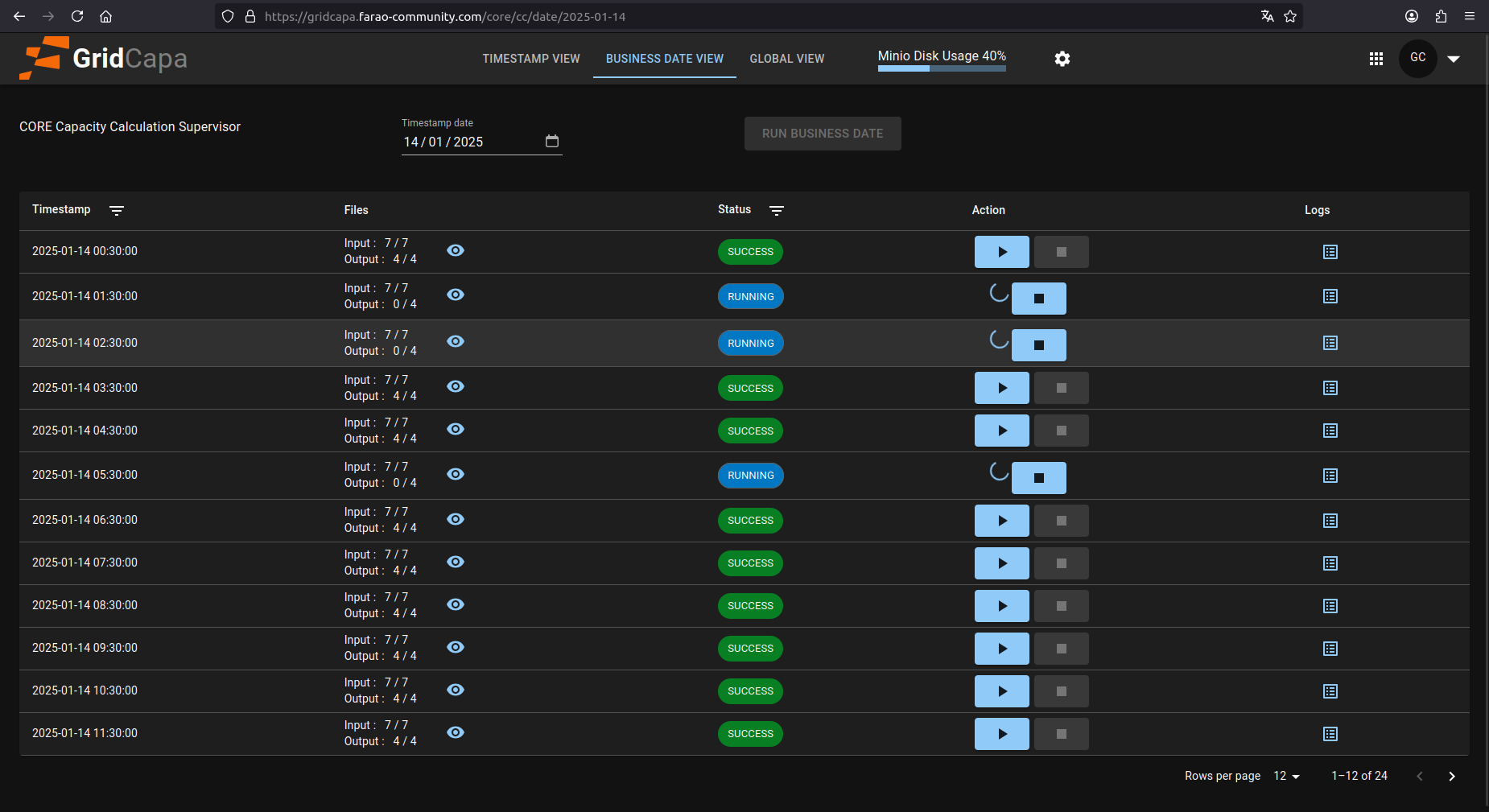
GridCapa supports both light and dark display modes to accommodate different user preferences and working environments.
Change language
GridCapa supports multiple languages. You can change the language through the language selection menu.
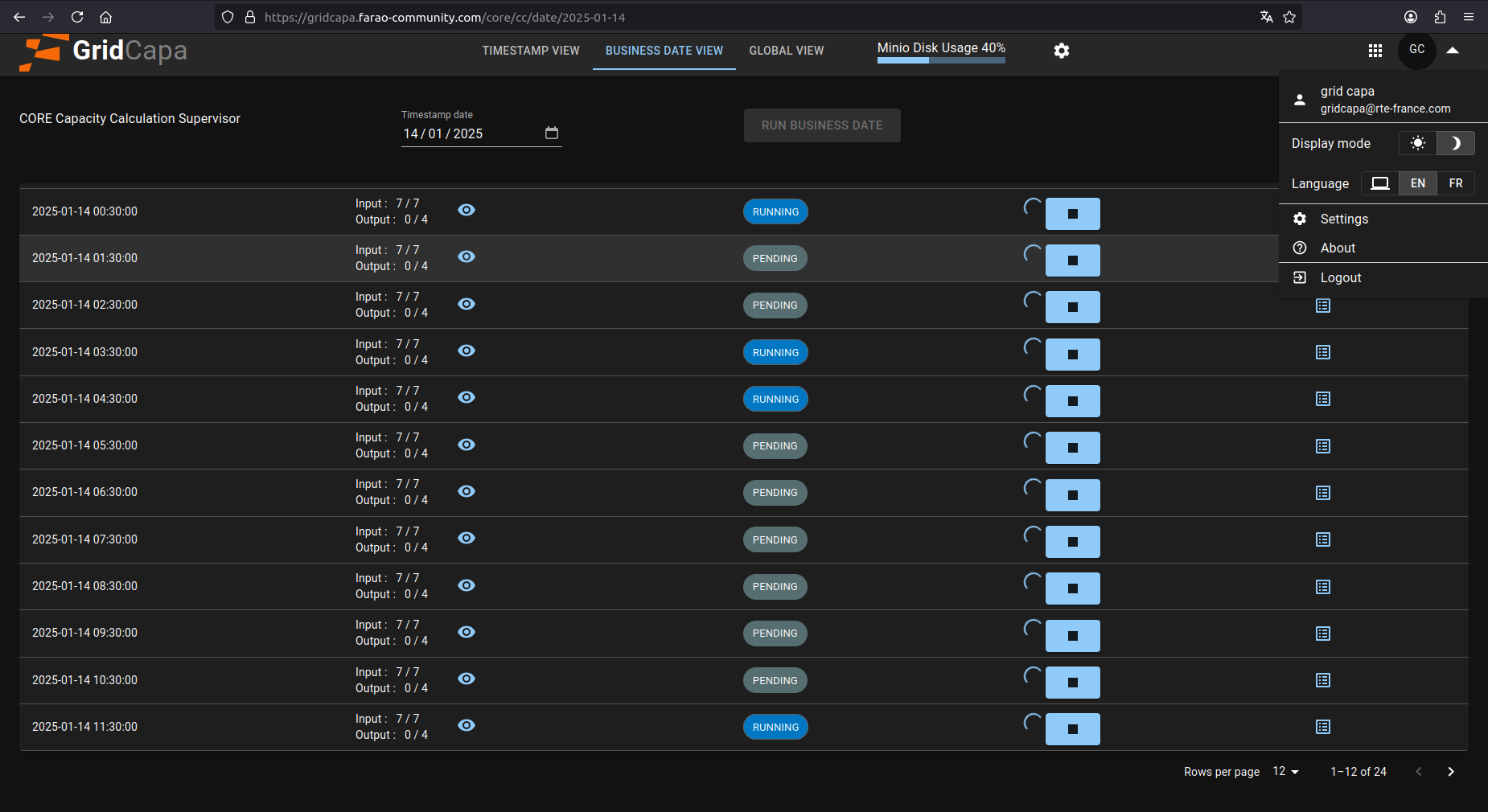
Task status visualization
GridCapa lists tasks status and details in three different views:
- Business date view (default view of GridCapa)
- Timestamp view
- Global view
Business date view

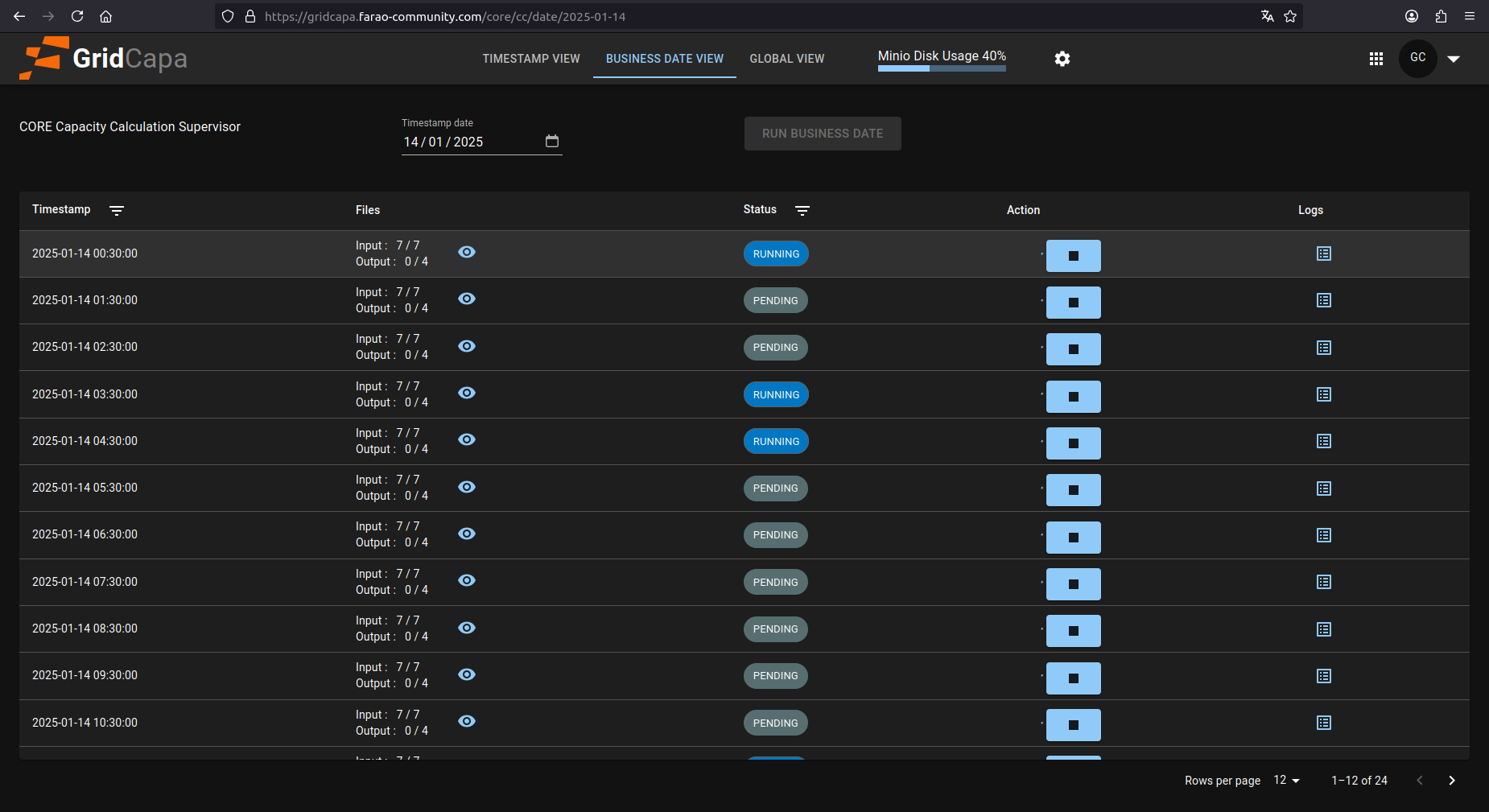
Business date view lists all the potential tasks for one business date. Its content depends on the process configuration (some have 24 tasks per day, whereas some have less). It is the default view of GridCapa.
This view allows:
- The run of one task only
- Display the events of the task running
- For concerned processes the interruption of a running task
- Download of input/output files
- The run of all tasks for a given date
Timestamp view
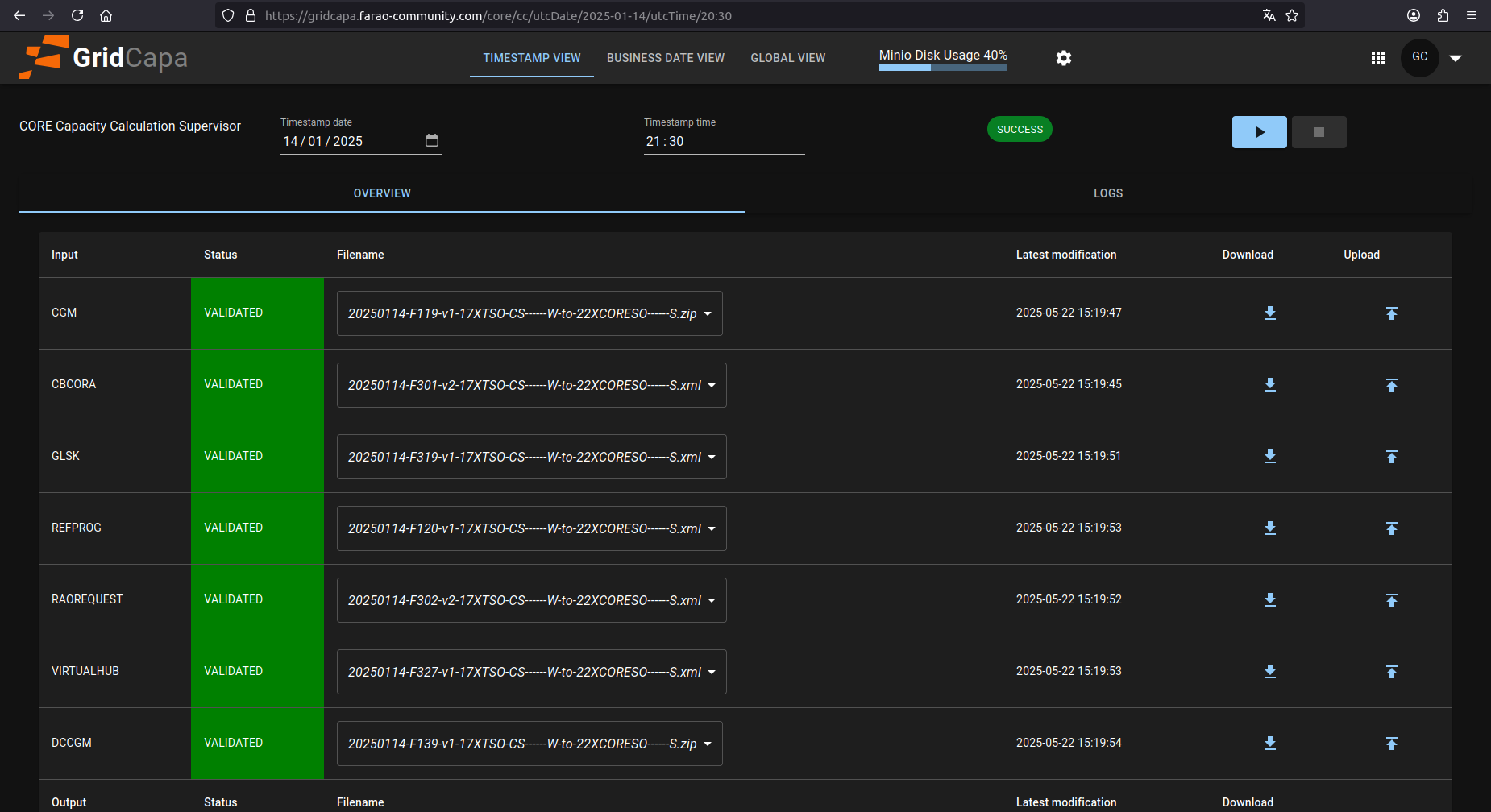
Timestamp view gives detailed information on a single task, defined by its date and time.
This view allows:
- The run of one task only
- Display the events of the task running
- For concerned processes the interruption of a running task
- Download of input/output files
Global view
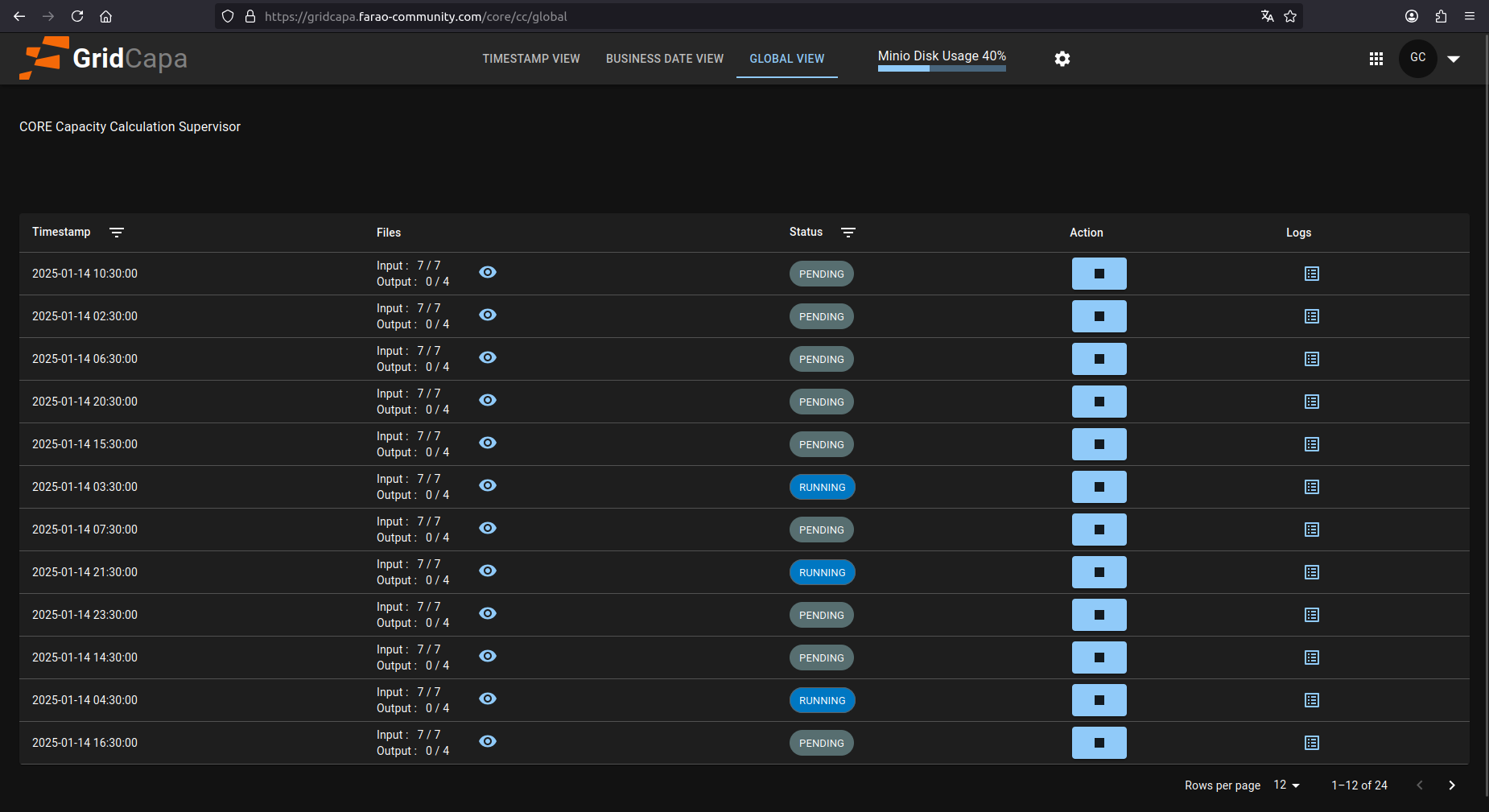
Global view lists all running and pending tasks for a given process.
This view allows:
- An overview of all running tasks
- Display the events of a running task
- For concerned processes the interruption of a running task
- Download of input/output files
Task run
Running a single timestamp
To be able to run a process:
- All the compulsory inputs should be available and their status is "present"
- The status should change from "not_created" to "ready"
- The button "Run" is available ("Run" button is available when task is in state "ready", "interrupted" or "error")
- Click on the button "Run"
Running full business date
In Business date view, click "run business date" button if it is available. This will run all tasks that are in a runnable state ("ready", "interrupted" or "error").
Task interruption
To be able to stop/interrupt a process:
- The button "Stop" is available ("Stop" button is available when task is in state "running")
- Click on the button "Stop"
Task logs visualization
Timestamp view
Click on "Logs" tab to view the logs for a specific timestamp.
Business date view
Click on timestamps "log" button to view the logs for a specific timestamp within the business date view.
Global view
Click on timestamps "log" button to view the logs for a specific timestamp within the global view.
File management
How to display the process files
Business view
Click on timestamps "eye" icon to view the files associated with a specific timestamp.
Global view
Click on timestamps "eye" icon to view the files associated with a specific timestamp.
Manual input upload
Input files can be automatically imported from FTP or SFTP source to feed GridCapa tasks. However, GridCapa UI also provides manual input upload, both in timestamp view and business date view.
Timestamp view

Click on the upload button  to upload a file.
Note that there is no control on the type of file or date.
Manual output download
Timestamp view
Click on the download button to download the file.
How to export manually the results
Timestamp view
Click on the export button. The output files on MinIO for this timestamp will be exported to FTP.
It's possible to export the results only if the task has the status "SUCCESS" or "ERROR".
Process parameters handling
Platform parameters
Installed with platform, initializes default parameters. Cannot be modified by end users.
Default parameters
Can be modified by end users for each process, initializes task parameters. Can be modified through the "gear" icon at the top of GridCapa page.
Task parameters
Parameters actually used in a given task. Can be modified before any manual run of a task.
Secondary features
MinIO storage monitoring
GridCapa provides monitoring of the MinIO storage used for file management.